
Google has introduced several new Gemini Notebook features in 2026, making its AI research and learning experience more interactive and useful for students, researchers, and professionals.
The Gemini Notebook 2026 update adds features such as real-time voice conversations, a mobile audio recorder, interactive quizzes and flashcards, Learning Overviews, and Short Video Overviews.
These tools are designed to help users capture information, understand complex topics, and turn research material into easier-to-use learning resources. If you previously used NotebookLM, there is an important change to know. Google officially renamed NotebookLM to Gemini Notebook in July 2026.
The core focus remains research and learning, while the product is being expanded with additional Gemini capabilities. In this guide, we'll explain Gemini Notebook features in 2026, how the new tools work, how to use the audio recorder, quizzes, Learning Overviews and Short Video Overviews, availability, and whether Gemini Notebook is free
What Is Gemini Notebook?
Gemini Notebook is Google's AI-powered research and learning tool that lets you upload your own sources and interact with them using AI.
You can add sources such as PDFs, websites, YouTube videos, Google Docs and Slides. Gemini Notebook then analyzes the information and allows you to ask questions, create summaries, generate study materials and explore your content. Google says its responses can be grounded in the information you provide, with citations available for source-based answers.
For students, researchers and professionals, this means you can turn a collection of documents into an interactive AI-powered workspace.
What's New in Gemini Notebook 2026?
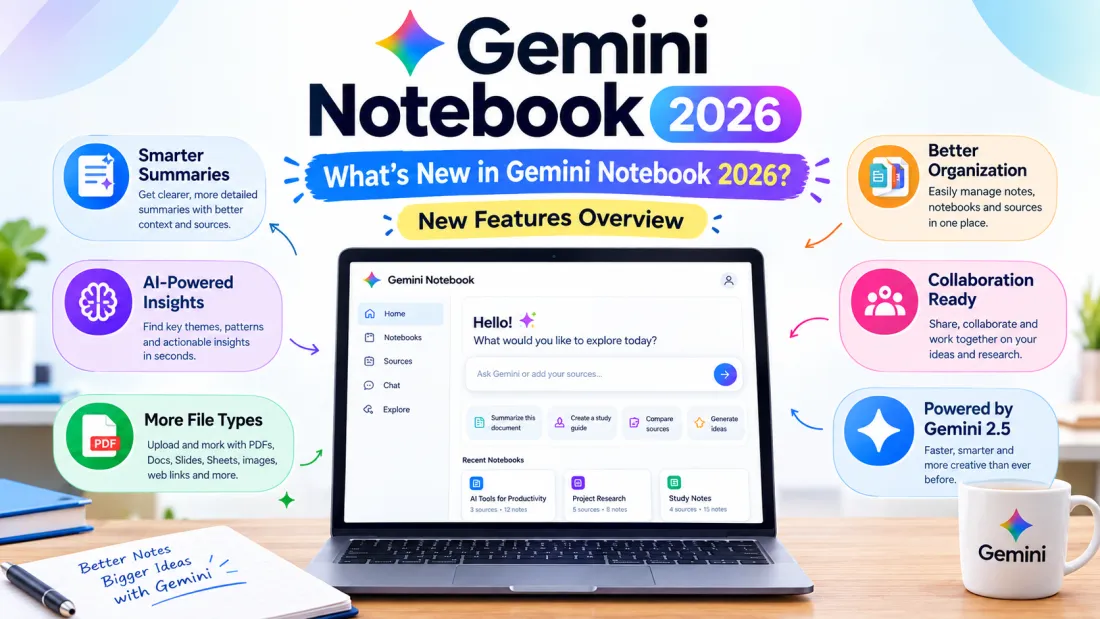
1. Real-Time Voice Chat

One of the biggest new Gemini Notebook AI features is real-time voice conversation. Instead of typing questions, you can talk to your notebook through the mobile app. Ask questions about your sources, request explanations, or get step-by-step guidance as you study.
Google says the feature supports nearly 100 languages, making it accessible to users around the world. You can also interrupt Gemini while it is speaking, creating a more natural, back-and-forth conversation.
How to Use Gemini Notebook Voice Chat
Getting started is simple:
1. Open the Gemini Notebook app.
2. Open an existing notebook or create a new one.
3. Add your study or research sources.
4.Start the voice conversation feature.
5. Ask questions about your sources.
6. Continue with follow-up questions to explore the topic in more detail.
Because Gemini Notebook grounds its responses in your notebook sources, you can use voice chat to discuss specific study materials instead of starting from a blank AI chat. This makes it useful for reviewing notes, understanding difficult concepts, and exploring research topics through conversation.
Availability
Google says voice chat is rolling out first to Google AI Ultra subscribers aged 18 and above, followed by Google AI Pro and other users. Availability may vary depending on your account, region, and rollout stage.
Bottom line: Real-time voice chat makes Gemini Notebook feel more like a personal study partner, allowing you to learn through conversation rather than relying only on typed questions.
2. Gemini Notebook Audio Recorder
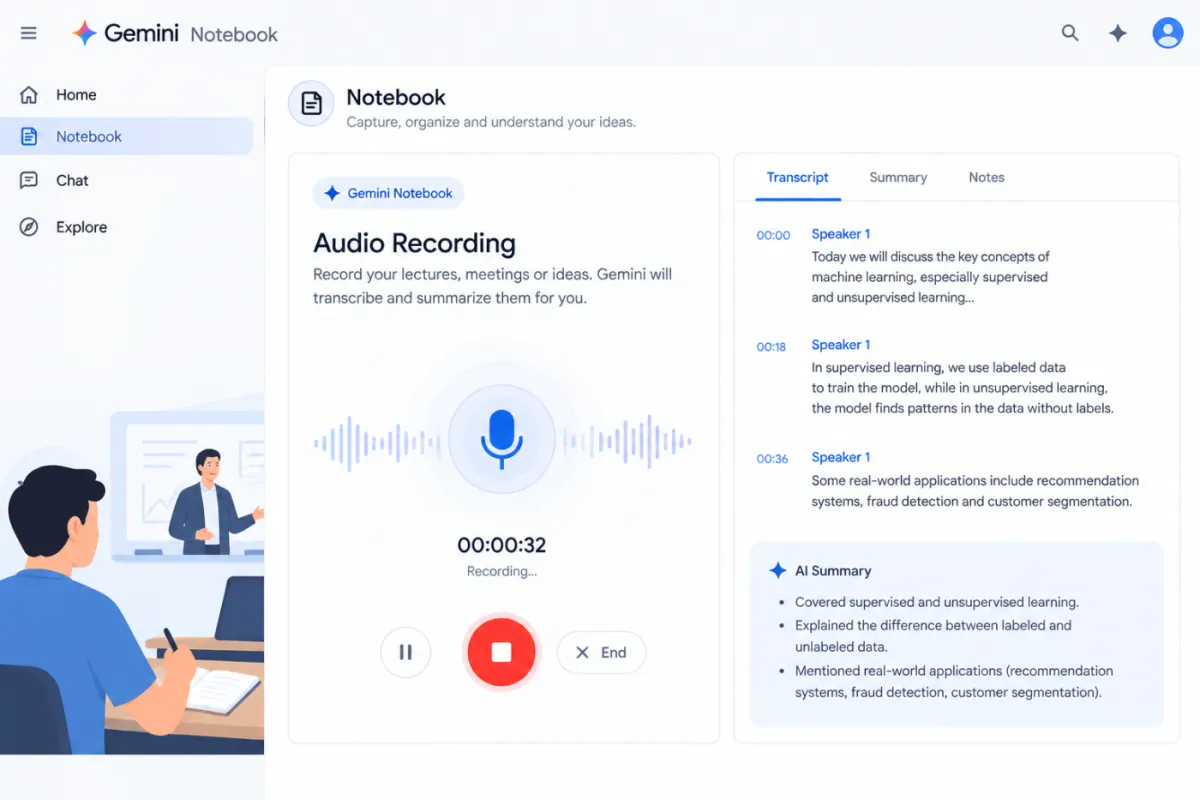
Another useful addition is the Gemini Notebook Audio Recorder, which makes it easier to capture lectures, meetings, ideas, and other important information directly from your mobile device.
With the mobile app, you can record audio while you're away from your computer, such as during a lecture or while working on research. This can help you capture important information without having to type everything manually.
According to Google, these recordings can be kept alongside your other notebook sources. This means you can continue organizing and working with your recordings, notes, and research materials together in the same notebook.
For students and researchers, the feature can be particularly useful for capturing information on the go and keeping it connected to the rest of their study materials.
How to Record a Lecture With Gemini Notebook
Recording a lecture or capturing personal notes with Gemini Notebook is a straightforward process. A typical workflow looks like this:
1. Open Gemini Notebook on your mobile device.
2. Open an existing notebook or create a new one.
3. Start the Audio Recorder.
4. Record your lecture, discussion, or personal notes.
5. Save the recording to your notebook.
6. Return to the recording later when studying or researching.
This feature can be particularly useful for studentswho want to keep lecture recordings, PDFs, notes, and other study sources together in one notebook. It can make it easier to revisit important information and continue working with your study materials later.
3. Interactive Quizzes in Gemini Notebook
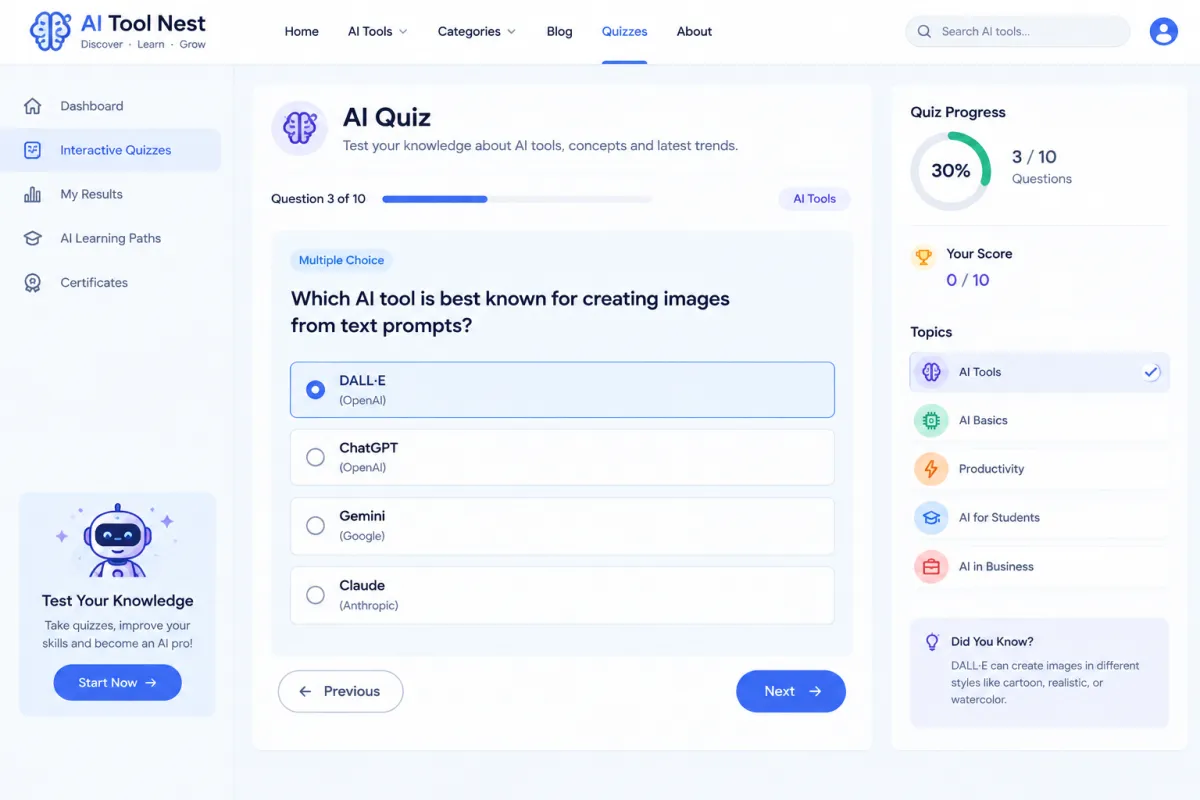
Gemini Notebook is also expanding its AI-powered quiz capabilities, making it easier to turn your study materials into interactive practice sessions.
You can create quizzes based on the sources you've uploaded to your notebook. According to Google, the updated quiz experience includes formats such as short-answer, multiple-select, and fill-in-the-blank questions.
This makes Gemini Notebook useful not only for reading, summarizing, and understanding information, but also for actively testing what you've learned. Instead of simply reviewing your notes, you can use quizzes to identify knowledge gaps and reinforce important concepts.
How to Create a Quiz in Gemini Notebook
Creating a study quiz is straightforward:
1. Upload your study materials to a notebook.
2. Open the Reports or relevant study tools section.
3. Select the Quiz option.Generate questions based on your sources.
4. Answer the questions.Review your results and identify areas that need more attention.
5. Ask the notebook follow-up questions about topics you found difficult.
Google also says you can customize quizzes by adding or editing questions, giving you more control over the type of practice you want.
For students, this can turn a notebook from a place to store study materials into a more interactive learning and revision tool.
4. Gemini Notebook Flashcards
Students can also use Gemini Notebook flashcards to review important concepts and reinforce what they've learned.
Gemini Notebook for Students can help learners organize their study materials.
Instead of manually creating flashcards from textbooks, PDFs, or lecture notes, Gemini Notebook can generate study materials based on the sources you've uploaded. This can save time while helping you focus on the information that matters most.
Flashcards can be particularly useful for:
1. Exam preparation
2. Vocabulary building
3. Definitions and terminology
4. Key concepts
5.Quick revision
6.Professional certifications
7. Research topics
Because the flashcards are generated from your notebook sources, they can help you review material that is directly relevant to your studies or research.
Google's education resources also highlight flashcards and practice quizzes as part of Gemini Notebook's learning capabilities, making the platform more useful for active study and revision.
5. Gemini Notebook Video Summaries
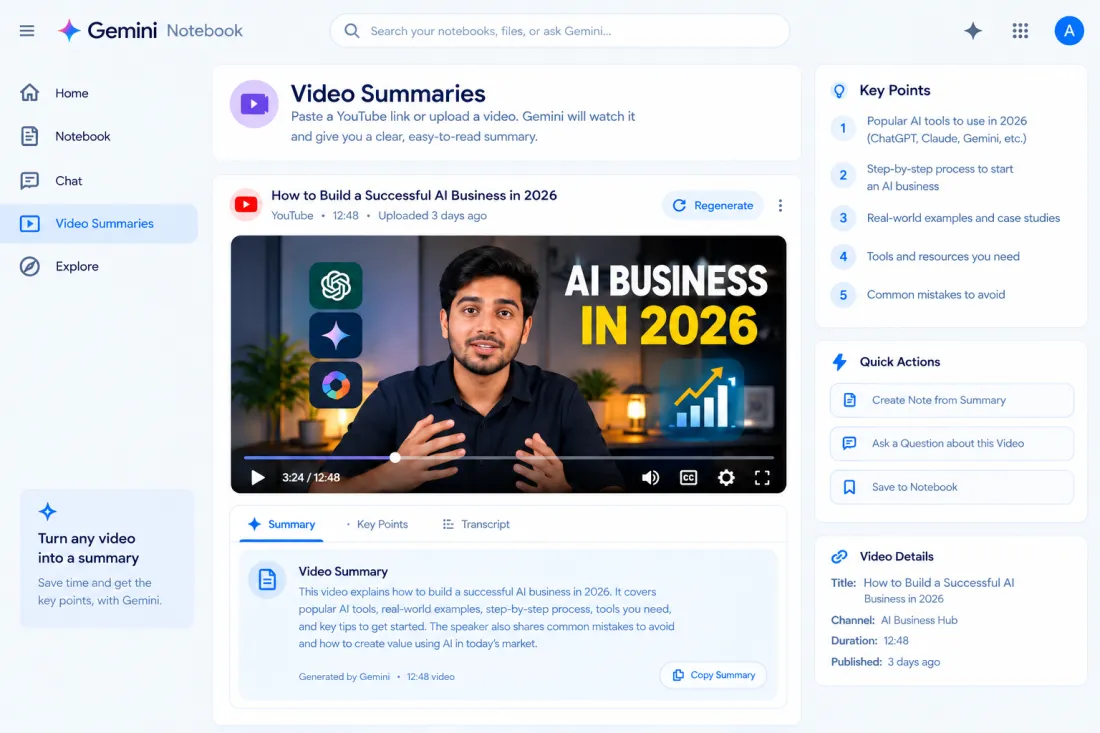
Another major addition is Short Video Overviews, which gives users a more visual way to understand information from their notebook sources.
Gemini Notebook can generate short educational videos based on the material you've uploaded.
According to Google, these videos can be around 60 seconds long and may include narration, visual explanations, and educational animations.
The feature is expanding to support more than 80 languages and can be used to explain complex topics such as formulas, diagrams, scientific concepts, and other difficult study material.
How to Create a Video Summary in Gemini Notebook
Creating a Short Video Overview typically involves these steps:
1. Create a new notebook or open an existing one.
2. Add your study or research sources.
3. Allow Gemini Notebook to analyze the material.
4. Open the available Studio or video-related tool.
5. Select Short Video Overview to generate the video.
6.Review the generated explanation and use it as part of your study or revision.
Short Video Overviews can be especially helpful when a visual explanation is easier to understand than a long text summary. They can also provide a quick way to review complex topics before an exam, presentation, or research session.
6. Interactive Learning Overviews
Google is also introducing interactive Learning Overviews.
These can combine summaries with other study outputs such as:
1. Infographics
2. Quizzes
3. Flashcards
4. Other learning materials
The goal is to create a more complete study experience rather than simply generating one text summary. Google says these interactive Learning Overviews are rolling out over the following weeks.
Gemini Notebook vs NotebookLM
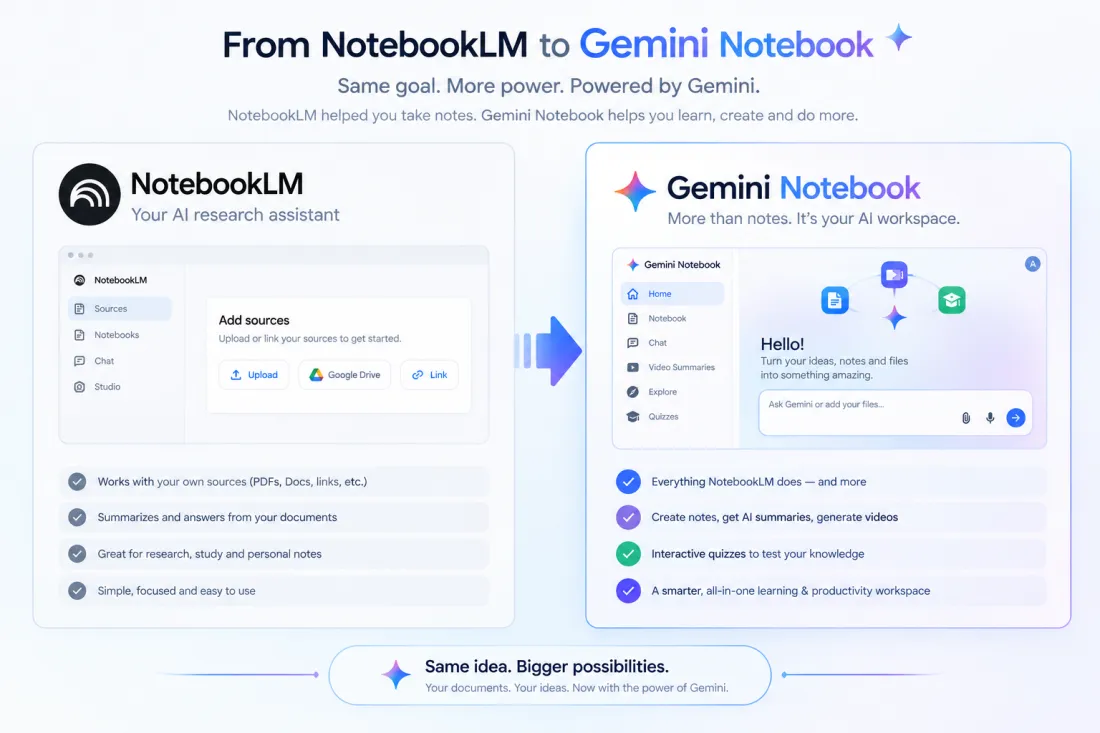
If you're searching for Gemini Notebook vs NotebookLM, there is an important point to understand: Gemini Notebook is the new name for NotebookLM, rather than a completely separate product.
Google announced in July 2026 that NotebookLM was being renamed Gemini Notebook. The product remains a standalone AI-powered research and learning tool, while the new branding reflects its broader connection with Google's Gemini ecosystem.
So, there isn't really a traditional Gemini Notebook vs NotebookLMcomparison. Instead, NotebookLM is the former name, while Gemini Notebook is the current name.
Gemini Notebook vs NotebookLM Comparison
Feature
Gemini Notebook
Former name
NotebookLM
Research
Yes
PDF analysis
Yes
Website sources
Yes
YouTube sources
Yes
Voice conversation
Yes
Voice conversation
Rolling out
Audio recording
Rolling out
Interactive quizzes
Yes
Flashcards
Yes
Video Overviews
Yes
Source-based answers
Yes
What Does This Mean for Users?
If you previously used NotebookLM, the transition to Gemini Notebook does not mean you're switching to an entirely different product. The new name reflects Google's effort to connect the notebook experience more closely with its broader Gemini AI ecosystem.
This also explains why searches such as "NotebookLM 2026," "Gemini Notebook," and "Gemini Notebook vs NotebookLM" may lead to information about the same underlying product.
For users researching the latest features, it's therefore more useful to look at what has changed in Gemini Notebook rather than treating Gemini Notebook and NotebookLM as two competing tools.
Is Gemini Notebook Free?
Gemini Notebook is available as a free tool, although some advanced features and usage limits can depend on your Google AI plan and account.
Google's education page describes Gemini Notebook as free of charge for educators and students through supported education offerings.
Google has also announced student offers in certain markets that provide higher usage limits through Google AI plans. Eligibility and availability depend on the country and offer terms.
Therefore, before publishing or relying on a specific premium feature, check your account's current availability because Google is rolling several of these features out gradually.
Gemini Notebook for Students
Gemini Notebook for Students can work as an AI-powered study assistant, helping learners organize, understand, and review their study materials in one place.
Instead of using separate tools for notes, PDFs, revision, and practice, students can use Gemini Notebook to work with their sources and create different types of study materials.
Students can use Gemini Notebook for Students to create quizzes, flashcards, and study guides.
Overall, Gemini Notebook for Students can be useful for studying and revision.
You can use Gemini Notebook for studyingto:
1. Summarize lecture notes and study materials
2. Analyze PDFs and other sources
3. Ask questions about your study material
4. Generate AI-powered flashcards
5. Create practice quizzes
6. Record lectures and personal notes
7. Discuss difficult concepts using voice
8. Create short educational videos
9. Build personalized study guides
These features can make Gemini Notebook useful throughout the learning process—from understanding new topics to practicing questions and revising before exams.
Google's education documentation also highlights features such as study guides, quizzes, flashcards, audio summaries, visual explainers, and source-grounded answers as learning use cases.
For students looking for an AI study assistant, Gemini Notebook brings these tools together around the sources they're already using, making it easier to turn class materials and research into interactive study resources.
Gemini Notebook for Researchers and Professionals
Gemini Notebook isn't limited to students.
Researchers can use it to organize papers and source material, while professionals can use it for reports, training documents, policies and other large collections of information.
Because the tool works with uploaded sources, it can be useful when you want an AI system to work from a defined collection of documents instead of relying only on a general conversation.
How to Get Started With Gemini Notebook
If you are new to Gemini Notebook, follow these simple steps:
Step 1: Open Gemini Notebook
Go to the official Gemini Notebook website and sign in with your Google account.
Step 2: Create a Notebook
Create a new notebook for your subject, project or research topic.
Step 3: Add Sources
Upload your PDFs, documents, websites, YouTube videos or other supported sources.
Step 4: Ask Questions
Use notebook chat to ask questions about the information you uploaded.
Step 5: Generate Study Materials
Depending on the features available to your account, create summaries, quizzes, flashcards, reports or other study materials.
Step 6: Try Voice and Multimedia Features
If the feature has reached your account, experiment with voice conversations, audio recording and Short Video Overviews.
What Makes Gemini Notebook Different From a Normal AI Chatbot?
The biggest difference between Gemini Notebook and a normalAI chatbotis its source-focused approach. Instead of starting with a general question, you can create a notebook around a specific collection of documents, notes, or other sources and then ask questions based on that material.
This makes Gemini Notebook for research and study particularly useful when you need to work with large amounts of information.
For example, you could upload a 100-page research paper and ask:
“What are the three main findings?”
Or, if you are a student, you could upload your lecture notes and ask:
“Create a 10-question quiz from Chapter 3.”
Gemini Notebook can then use the information in your selected sources to help you understand, summarize, review, and explore the material.
This source-based workflow makes Gemini Notebook different from a typical general-purpose AI chat and can be especially useful for students, researchers, and anyone working with specific documents or study materials.
Frequently Asked Questions
What isGemini Notebook?
Gemini Notebook is Google's AI-powered research and learning tool. It was previously called NotebookLM and was officially renamed Gemini Notebook in July 2026.
Is Gemini Notebook the same as NotebookLM?
Yes. Google announced that NotebookLM was being renamed Gemini Notebook while remaining a standalone product.
Can Gemini Notebook talk to you?
Yes. Google is rolling out real-time voice conversations through the Gemini Notebook mobile experience. Availability depends on the user's account and rollout stage.
Can Gemini Notebook record lectures?
Yes. Google announced an audio recorder for the mobile app that can be used to capture lectures and thoughts.
Can Gemini Notebook create quizzes?
Yes. Gemini Notebook can generate interactive quizzes from your sources, with additional formats such as short-answer, multiple-select and fill-in-the-blank questions being introduced.
Can Gemini Notebook create video summaries?
Yes. Gemini Notebook can create Short Video Overviews based on your sources. Google says these videos can use narration and educational animations and are expanding to more than 80 languages.
Is Gemini Notebook free?
Gemini Notebook has a free offering, while some usage limits and advanced capabilities depend on the account, plan and rollout.aragraph here
Gemini Notebook 2026 is becoming more than a traditional document-research tool. With voice chat, audio recording, quizzes, flashcards, interactive learning overviews and short video summaries, Google is turning it into a more interactive learning and research workspace.
The biggest change for existing NotebookLM users is the name: NotebookLM is now Gemini Notebook. If you've used NotebookLM before, you don't need to think of Gemini Notebook as an entirely new product—it is Google's next stage for the same research-focused experience.
As these features continue rolling out, availability can differ by account, subscription and region.
So if you don't see a particular feature yet, it may simply not have reached your account.
Official Gemini Notebook: Google’s official Gemini Notebook resources and education documentation can be used to check current feature availability and supported capabilities.